Let's start with a question: which machine does the address in your browser point to, and who finds that machine?
Before getting to the answer, the word "network" needs shrinking. It sounds big; data centres and cables running under oceans come to mind. In its plainest form, though, a network is two devices and a single connection between them. Join two computers with one cable and you have a working network. There's no finding problem here either, because data leaving one end of the cable has exactly one place to go.
The internet, on the other hand, is a place with billions of devices, and there finding is a real problem. In the rest of this post I'll open up the layers of that problem one at a time. For each concept I'll do two things: remind you where you've already run into it, and show you how to look at it on your own machine. Because none of this is abstract. All of it sits behind an error message or a stretch of waiting.
Addressing
The first four concepts do one job together: point at the right machine, and at the right program on that machine.
IP address
Every device on a network has an address, and that address is called an IP address. Other devices need it to find the device at all.
Addresses come in two versions. The common one is IPv4, four numbers separated by dots like 93.184.216.34, each between 0 and 255. That structure yields around 4.3 billion addresses, which stopped being enough a long time ago given how many devices connect to the internet. IPv6 exists for that reason. It looks like 2001:db8::4a2b:1f30:9c07 and offers a space that is not going to run out in practice.
Addresses are also either private or public. Private ones start with 192.168. or 10. and mean something only inside your own network. A public address represents you across the whole internet, and your internet service provider is the one who hands it to you.
Laptop      192.168.1.10     private
Phone       192.168.1.24     private
TV          192.168.1.31     private
   ↓
Router      88.245.13.7      public
Each device in your home has its own private address, but on the way out they all use the router's public one. So what shows up in a site's logs isn't your device, it's your house.
Where you've seen this: a number like 192.168.1.24 in your phone's wifi settings. Or the IP column next to a visitor record in your server logs.
Try it yourself: typing ipconfig getifaddr en0 in a terminal shows your machine's private address. On Windows, ipconfig does the same job. For your public address, curl ifconfig.me is enough. Don't be surprised if running that on two different devices gives you the same answer; you'll see why shortly.
DNS
DNS is short for Domain Name System. Nobody wants to memorise IP addresses. DNS is the system that translates the names people type, like github.com, into the addresses machines use, like 140.82.121.4.
The translation doesn't happen in one place. A few doors get knocked on in order. First the browser checks its own memory. If the answer isn't there, the operating system gets asked. If it doesn't know either, the question goes to a resolver, usually a server run by your internet service provider or by a public provider like Google.
If the resolver doesn't know, it climbs the hierarchy: first the root servers, then the server responsible for a top-level domain like .com, and finally the authoritative server that actually holds that domain's records.
It sounds long, but in practice most queries never walk the whole path, because the answer found at each step gets stored for a while. How long it's stored is what the record's TTL value says.
Where you've seen this: your site still opening from the old place after you've pointed the domain at a new server. Nothing is wrong on the code side; the record you're holding just hasn't refreshed yet. It fixes itself once the TTL expires.
Try it yourself: typing nslookup github.com shows you which address the name resolves to.
$ nslookup github.com

Name:    github.com
Address: 140.82.121.4
Together, IP and DNS get traffic to the right machine. But a machine can be running several programs at once. Which one does the request go to?
Port
The answer is in port numbers. A port is the number that decides which program on the machine incoming data goes to. Write the address and the port together and the destination is fully specified.
192.168.1.10:3000

192.168.1.10   →  which machine
3000           →  which program
Port numbers run from 0 to 65535, and some have become identified with common services.
HTTP          →  80
HTTPS         →  443
PostgreSQL    →  5432
Redis         →  6379
These aren't technical requirements, just defaults everyone has agreed on. Nothing stops you from running an application on a different port.
Where you've seen this: Next.js saying Port 3000 is in use, trying 3001 instead when you open two projects at once. The number isn't free, because another process is listening on it.
Try it yourself: lsof -i :3000 shows which program is holding that port, with its name and PID. A stubborn process can be closed with kill <PID>.
So far we can describe the right device and the right program on it. But getting the devices on a local network out to the internet creates a separate problem.
NAT
Devices in your home or office usually use private addresses.
Laptop    192.168.1.10
Phone     192.168.1.11
Those addresses mean something only inside your own network. Once you go out to the internet, every device on your network appears through a single public address. The mechanism doing that conversion is called NAT.
Laptop
192.168.1.10
      │
      ↓
   Router
      │
      ↓
Public IP
203.x.x.x
      │
      ↓
  Internet
The router maps the addresses on the local network to the public address used in the outside world, and when the answer comes back it routes it to the right device. That's how dozens of devices on the same network can reach the internet through one public address.
Where you've seen this: starting your dev server and getting nothing when you try localhost:3000 from your phone. localhost means "itself" for every device, so your phone is looking inside itself. Entering the private IP, 192.168.1.10:3000, works, because now you're pointing at the right machine.
Try it yourself: checking your public IP on your laptop and on your phone and getting the same answer is proof NAT is doing its job.
At this point we've largely solved the addressing problem.
DNS    name  →  IP address
IP     which machine
Port   which program
NAT    private address  ↔  public address
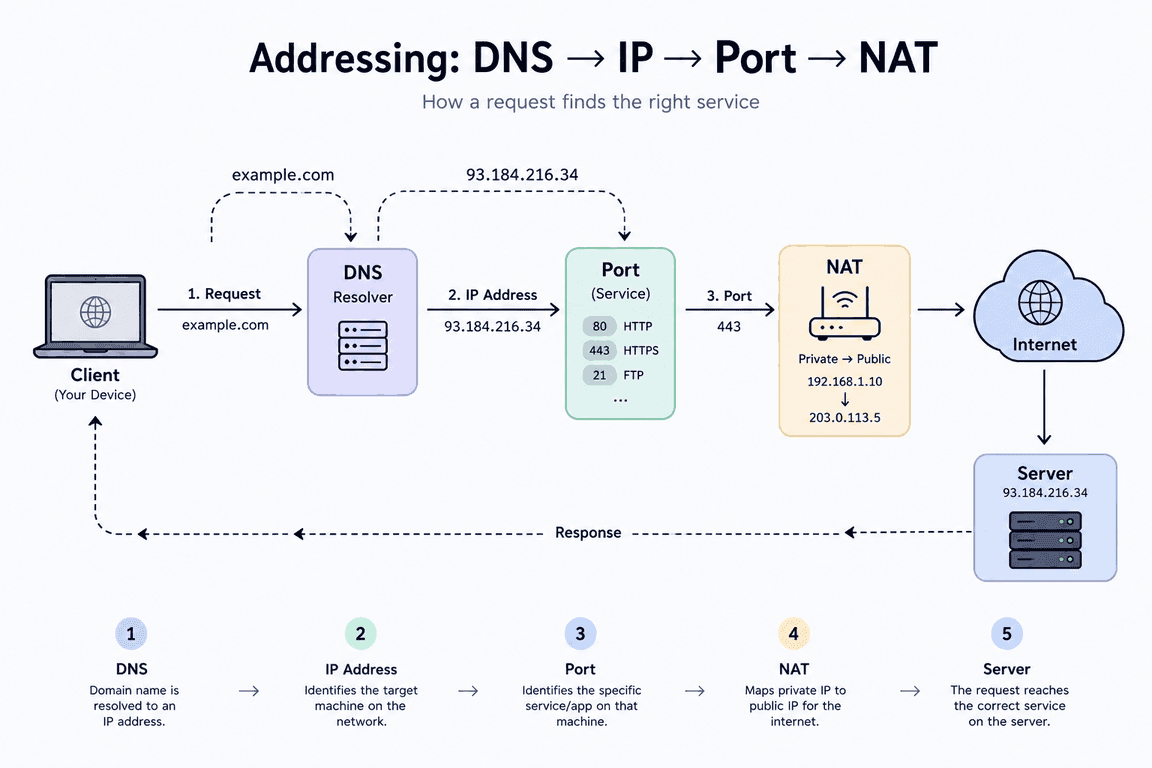
Put end to end, the four are one chain: the name resolves to an address, the address identifies the machine, the port identifies the program on it, and NAT rewrites the sender on the way out. The response comes back along the same path.
But knowing the destination isn't enough on its own. How does a packet know which way to go on its trip from the source device to the destination?
Routing
Knowing a device's IP address isn't enough to reach it, because devices on a network usually aren't connected directly to each other. Packets can pass through several routers before arriving.
Source
  ↓
Router A
  ↓
Router B
  ↓
Router C
  ↓
Destination
Routing is the act of deciding which way a packet goes to reach its destination. Routers make that decision using a routing table, which holds which direction to take for which destination.
The striking part is this: a router doesn't need to know the whole path. Knowing the next hop is usually enough. On large networks this path information is shared through routing protocols; BGP, for example, is what lets separate networks on the internet exchange route information with each other.
The core idea: IP defines the destination, routing determines how to get there.
Where you've seen this: one of two sites in the same country opening noticeably later than the other. Even with identical geographic distance, the number of hops a packet passes through can differ.
Try it yourself: run traceroute github.com. The Windows equivalent is tracert. Each line in the output is a stop the packet made, and the time next to it is how long it took to get that far.
Devices can find each other and packets can travel. So by what rules do these devices talk?
Protocols
For devices on a network to understand each other, they need shared rules. Those rules define how messages get sent and how they get interpreted.
Different protocols are used for different problems.
IP     addressing
TCP    reliable transport
UDP    fast transport
DNS    name resolution
HTTP   web communication
TLS    secure communication
Rather than one protocol doing everything on a network, several work together. As a web developer, the one you touch most isn't at the top of that list, it's HTTP.
HTTP
HTTP is the protocol that sets the rules for communication between client and server on the web. It defines how a request gets sent and how the server answers.
Client
   │
   │  HTTP request
   ↓
Server
   │
   │  HTTP response
   ↓
Client
A request looks like this:
GET /users HTTP/1.1
Host: example.com
Here GET states the operation being attempted, /users the resource being asked for, and Host which domain the request is going to. The words used to name the operation, like GET, POST, PUT, PATCH and DELETE, are called methods.
Once the server has the request it sends back a response, and inside that response is a status code.
HTTP/1.1 200 OK
Content-Type: application/json
200   OK
201   Created
400   Bad Request
401   Unauthorized
403   Forbidden
404   Not Found
500   Internal Server Error
That way the client understands not just the content of the answer but the outcome of the operation.
Another important property of HTTP is that it's stateless. Each request is evaluated on its own; the protocol doesn't remember earlier ones. Things like session information are handled by separate mechanisms such as cookies or sessions.
Where you've seen this: the Headers panel that opens when you click a request in the Network tab of DevTools. What you see there is exactly the structure above.
Try it yourself: curl -i https://example.com prints both the headers and the body of the response. The first line is the status code.
HTTP sits at the top, right underneath the code you write. So what's underneath it?
Layers
Network communication isn't a single job. Physically moving data, managing a connection and speaking in a format the application understands are different problems. So communication is split into layers, and each layer serves the one above it.
Application
     ↓
Transport
     ↓
Internet
     ↓
Network access
The biggest benefit of that split is this: when a detail inside one layer changes, the others don't have to be rewritten. You don't need to know how Ethernet physically carries data in order to understand how HTTP works.
Two models are used to explain the layers. The OSI model splits communication into seven layers and is mostly a conceptual reference. The TCP/IP model is more practical for explaining the protocols the internet actually runs on.
Network access: Ethernet, Wi-Fi and MAC
The bottom layer deals with how a device physically attaches to the network. A MAC address is a network interface's physical address on the local network. Ethernet and Wi-Fi are the technologies that let devices communicate over that local network. An IP address may define the destination, but inside the local network the actual delivery is made to the MAC address.
Try it yourself: in the output of ifconfig, the line starting with ether shows your machine's MAC address. Physical Address in the output of ipconfig /all on Windows is the same thing.
Now let's look at the layer you meet most in daily life: transport.
Transport
Packets
Data doesn't travel to the other side in one piece. It's split into small chunks, each chunk sets off on its own, and at the destination they're reassembled by sequence number. Those chunks are called packets.
Chunks can travel different routes, arrive in a different order, and some may not arrive at all. Reassembling them and noticing what's missing is the receiving side's responsibility.
Where you've seen this: an image appearing band by band from the top down on a weak connection. What you're watching is packets arriving in sequence.
Try it yourself: run ping google.com for a few seconds and stop it. The summary line at the end of the output shows how many packets were sent, how many came back, and the loss rate.
TCP and UDP
The transport layer determines how data gets carried between programs on two devices. There are two basic approaches here.
TCP is the reliable one. It establishes a connection, tracks the chunks it sends, notices the ones that go missing and sends them again, and delivers data in the correct order. Web traffic, API requests and file transfers use it, because a response that arrives incomplete is no use.
UDP is the fast one. It doesn't require establishing a connection or guaranteeing delivery, so it runs with less overhead. When a packet is lost it isn't obliged to send it again. That's why it's preferred for live calls and real-time applications: there's no point re-requesting a frame that went missing two seconds ago.
TCP    reliability
UDP    speed and low latency
So there's no single answer to which one is better. The choice depends on what the application needs.
Where you've seen this: when your connection degrades, a page either loads fully or not at all, while on a video call the picture breaks up frame by frame and the conversation carries on. The difference between the two is exactly this.
Try it yourself: when you run curl -v https://example.com, the Connected to line at the start of the output is the TCP connection established before any data is exchanged.
So how does TCP actually establish that connection?
Handshake
A TCP connection isn't established in one shot. The two sides exchange messages first and set the connection up. If the address is HTTPS, an encryption agreement is layered on top of that. So before the first byte of data goes anywhere, several round trips between the two sides have already happened.
Each of those round trips costs an amount of time that depends on distance. The further away the server, the more expensive the setup. That's also why an established connection is held open for a while and reused.
Where you've seen this: your first visit to a site being noticeably slower than the clicks that follow. The second request doesn't pay the setup cost.
Try it yourself: open the Timing panel for a request in the Network tab of DevTools. The Initial connection and SSL rows are exactly these setup stages.
Security: HTTPS and TLS
The connection is up and the rules are clear. But as it stands, everything being said is readable in transit. TLS solves that problem.
TLS does two jobs. First, it makes the traffic in between unreadable. Second, it verifies through a certificate that the other side really is who it claims to be. The second part matters at least as much as the first, because having an encrypted conversation with the wrong person gets you nothing.
HTTP + TLS = HTTPS
On an HTTPS connection the order goes like this: the TCP connection is established first, then the TLS handshake takes place and the two sides share what they need for secure communication. Only after that is the HTTP request sent. The lock icon in the address bar is telling you this process finished.
Where you've seen this: the browser stepping in and refusing to show the page at all when you visit a site with an expired certificate. What produces that screen is the verification side of TLS.
Try it yourself: click the lock icon in the address bar and open the certificate details. You'll see who issued the certificate and when it stops being valid.
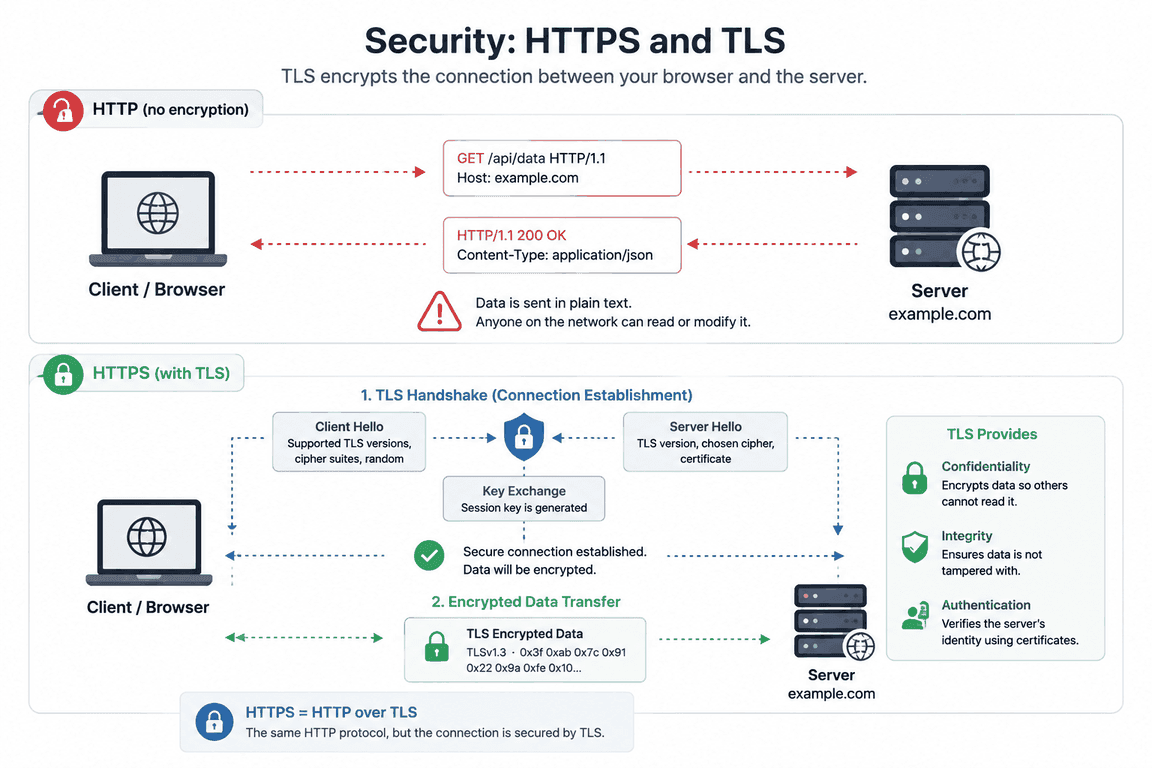
The diagram lays the two side by side: over plain HTTP the request and the response travel as readable text, while HTTPS puts a handshake in front and encrypts everything after it. It also names a third guarantee next to the two above, integrity, meaning the data can't be altered along the way without that being noticed.
We've reached the machine on the other side securely. But the machine you reached may not be the machine you think.
Infrastructure
Reverse proxy and load balancer
On a modern site, the first thing a request talks to is usually not the application itself but a layer sitting in front of it. That layer takes the request, forwards it to one of the servers behind if needed, takes the answer and hands it back to you. This is called a reverse proxy. If there's more than one server behind it and the load is shared between them, the thing doing that is called a load balancer.
Because this layer is invisible, you generally notice it exists when something breaks.
Where you've seen this: a 502 Bad Gateway error. Your application isn't producing this error, because your application can't be reached in the first place. The layer in front of it is handing it to you, and what it's really saying is: I asked the one behind me, I got no answer.
Try it yourself: look at the response headers with curl -I https://example.com. Fields like server give you a hint about who handled your request.
CDN
Your server sits in one place, but your users are everywhere. The distance in between creates unavoidable delay. A CDN shortens that distance by copying frequently used content to servers at different points around the world.
Once an image has been requested, it's stored at the nearest point, and later requests are answered from that copy. So the request often never reaches your actual server at all.
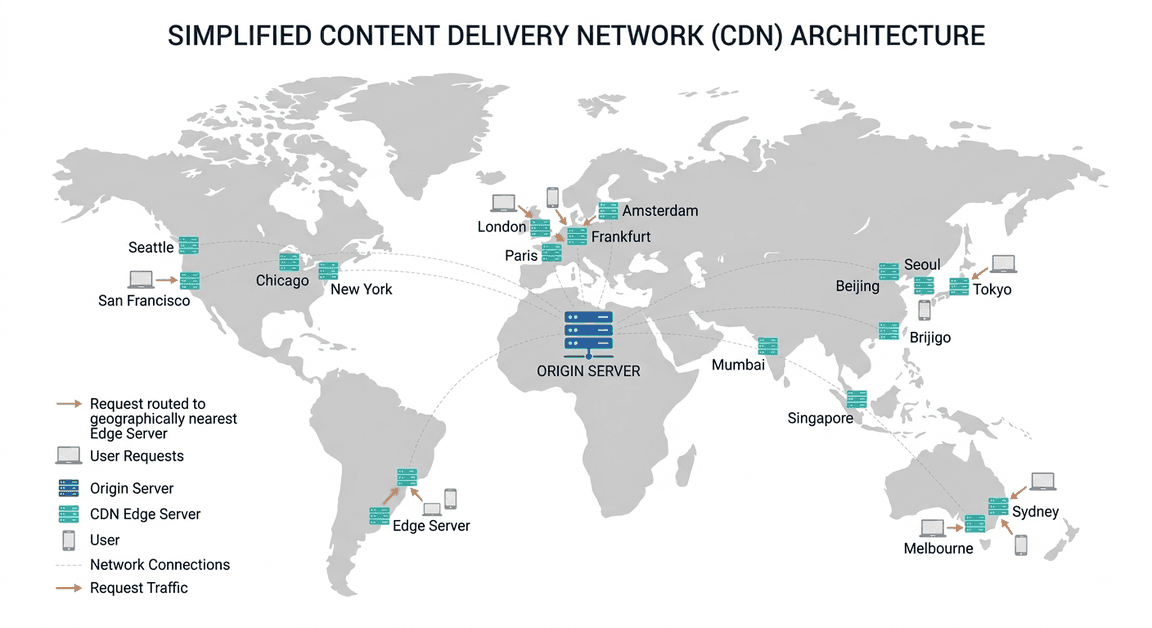
That's the logic on the map: one origin server in the middle, edge servers spread out around it, and each request going to whichever is closest. For a user in Sydney the point isn't where the origin is, it's that the copy in Melbourne is there.
Where you've seen this: images arriving slowly the first time a page opens, then appearing instantly on the second.
Try it yourself: look at an image's headers with curl -I. The age field tells you how long the content has been sitting there, and x-cache or similar fields tell you whether the request was served from a copy or from the actual server.
Performance: latency and bandwidth
Both get talked about with the word speed, but they measure different things.
Latency is the time it takes for data to go and come back. Bandwidth is how much data can be carried at once. More bandwidth lets you download large files faster, but it doesn't shorten the distance to a far-away server.
That's why upgrading your connection doesn't solve every problem. In an application making many small requests, the bottleneck is usually not bandwidth but the round trip time paid again and again for every request.
Where you've seen this: an API in a distant region answering slowly despite your fast internet.
Try it yourself: run ping against a nearby address and a distant one in turn. The difference in milliseconds is pure distance cost, with nothing to do with your bandwidth.
Wrapping up
Here's roughly what happens when you type something into the address bar: the name you typed was translated into an IP address by DNS, your request's address was rewritten by NAT on its way out of the local network, packets were routed towards the destination through a few routers, a TCP connection and then a TLS agreement were established with that destination, your request was sent as HTTP, it was answered not by the server itself but by a layer in front of it, and the response most likely came back from a copy near you without ever touching the actual server.
All of it happened in a few hundred milliseconds, and you just watched the page open.
You don't need to memorise any of these concepts. It's enough that next time you see a 502, or a page opens unexpectedly slowly, or your domain change refuses to take effect, you'll know where to look.